
Register for an event
Every event follows the same short path, whether it is free or paid, solo or in a team. This page walks through all four, and answers the questions that come up most.
The short version
Open the event, press Register, confirm your details, and you are in. If the ticket costs money you pay at the end; if it is a team event you either create a team or join one with a code. Your entry pass appears on the event page as soon as you are confirmed.
You only fill in your details once
Your profile is reused for every event after the first. If something is missing the first time, you are taken to a short form, and the next registration skips it entirely.
A free event, on your own
The simplest case, and most events are this.
- 1
Open the event and press Register
From the feed, or from a link somebody sent you. You need to be signed in — if you are not, you will be asked to first.
- 2
Check your details
Your profile is shown back to you. If anything required is missing, you are taken to a short form to fill it in. The fields are listed further down this page.
- 3
Answer anything extra
Some organizers add their own questions, or ask for a document. Both are explained below.
- 4
You're registered
Your entry pass appears straight away, with a QR code for the gate. A confirmation also goes to your email.
Some events need the organizer to approve you
If the organizer turned on approval, your registration says awaiting confirmation instead. Your pass only becomes valid once they accept you, and it says so on the pass itself — so there is no guessing whether you are in.
A paid event, on your own
Everything above, with payment at the end. Tickets are collected through Cashfree, an RBI-regulated gateway.
- 1
Pick your ticket
If the organizer set up more than one — say Early Bird and Regular — you choose. Sold-out tickets and expired Early Bird prices are not shown at all, so anything you can pick is one you can actually buy.
- 2
Pay
You are taken to Cashfree, where you can pay by UPI, card or net banking. ScrollConnect never sees your card details.
- 3
Your pass appears once payment clears
Usually within seconds. If your bank is slow, your registration sits as payment pending and settles itself — you do not need to pay again.
If you close the app mid-payment
Nothing is lost and nothing is charged. The seat you were holding is released automatically after 45 minutes, and you can start again from the event page whenever you like.
A team event
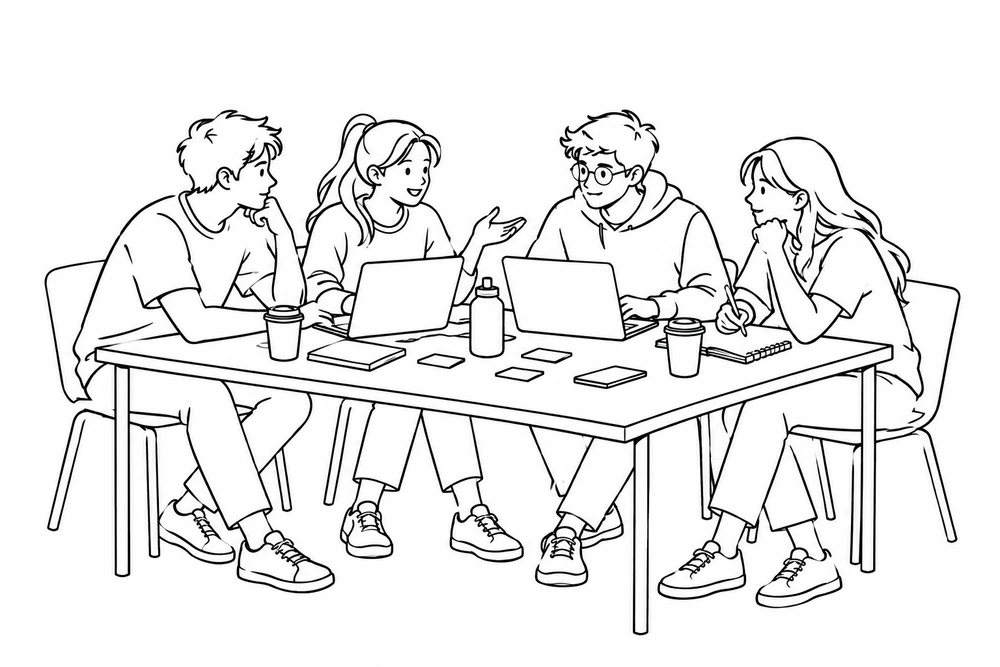
One person creates the team and everybody else joins it with a code. On a paid team event, the team pays once — not once per member.
If you are creating the team
- 1
Choose Create new team and name it
Pick a name your teammates will recognise.
- 2
Pay, if the event is paid
You pay for the whole team here. Nobody else will be asked for money.
- 3
Share your join code
Your team and its six-character code are created the moment your payment completes, and the code appears on your registration. Send it to your teammates.
Why the code only appears after payment
So a code can never be shared for a team that was not paid for. If the code existed before payment, your teammates could join a team that would not let them in — which is worse than waiting a minute for it.
If you are joining a team
- 1
Choose Join existing team
On the same event page, when you press Register.
- 2
Type the code your teammate sent
Six characters, like
NCFA2Z. Capitals, spaces and a pastedTEAM-prefix are all handled, so paste it however it arrived. - 3
You're in — and you pay nothing
Even on a paid event. The person who created the team already paid for the entry.
When the organizer asks for more
Two things an organizer can add to their registration form.
- Extra questions. Anything they need to know — a T-shirt size, a GitHub link, a dietary requirement. They can be text, a number, a link, a yes/no, or a list to pick from. Required ones are marked.
- A document.Some events need a CV, a portfolio or a college ID card. PDF, DOC/DOCX or an image, up to 10MB. It goes only to that event's organizer.
What your profile needs
Asked once, then reused. If any of these are missing when you first register, you are taken to a short form.
- Full namerequired
- Printed on your ticket and on any certificate the organizer issues, so spell it the way you want it to appear.
- Phone numberrequired
- The one you signed in with counts. You can type it with or without +91 — both are accepted.
- Gender and date of birthrequired
- Some events run separate categories, and organizers need them for their own records.
- Institute, department and yearrequired
- Organizers often restrict entry by college or year, so a registration cannot be checked without these.
- Roll or enrollment numberrequired
- How your college identifies you on the day.
Your entry pass
Once you are confirmed, your pass is on the event page and in the app. It carries a QR code, your name, your ticket type, your team if you have one, and a pass ID like SC-2026-68911.
- Show the QR at the gate. The organizer scans it and you are checked in.
- If a camera will not read it, read out your pass ID instead — the organizer can find you by it.
- Turn your screen brightness up if scanning is slow. A dim screen is the usual reason a gate camera struggles.
Questions that come up
Does registering cost anything?
ScrollConnect is free for students. You only ever pay the ticket price the organizer set, on events that have one.
I paid but my pass says pending.
Give it a minute and refresh. Payments that are slow to confirm settle on their own, and you are never charged twice. If it is still pending after an hour, email hello@scrollconnect.com with your pass ID.
My teammate paid. Why am I being asked for money?
You are not joining their team — you are creating a second one. Go back and choose Join existing team, then enter their code.
The join code is not working.
Two likely reasons. Either the team is full, or whoever created it has not finished paying yet — a team's code only works once its entry is paid for. The error on screen says which.
Can I cancel or get a refund?
Refunds are the organizer's decision, not ours — contact them through the event page. For a free event, simply not turning up is enough, though telling the organizer is kinder.
Can I register twice, or for a friend?
No. One registration per person per event, and the pass carries your name. For a friend, they need their own account — it takes about a minute.
Registration is closed but the event has not happened yet.
Organizers set their own deadline, and some close early once they are full. Ask them directly through the event page; they can reopen it.
Still stuck
Email hello@scrollconnect.com with the event name and your pass ID if you have one, and we will look it up. For anything about the event itself — timings, venue, rules — the organizer is on the event page and will know better than we do.
New here? Start with creating your account.